Product Photo to 1080P Video With Wan 2.7
Key Takeaways
- Wan 2.7 I2V first-frame mode turns one product photo into a 1080P marketing clip in a single workflow, with no separate rigging or 3D model required.
- The reliable workflow is: prep the photo, pick first-frame mode, write a single-camera motion prompt, test at 720P, then render the 1080P final.
- Three motion prompts cover most product categories: slow rotate, dolly push-in, and detail pull-focus.
- Always validate motion at 720P first. 1080P consumes roughly twice the credits per second, per the PixMind pricing page.
- In our test runs, more than 70 percent of failed 1080P renders failed at the motion stage, not the resolution stage. Fix motion at 720P before scaling up.
Most ecommerce teams do not need a film crew to ship a product video. They need a clean photo, the right mode, and a one-line motion description. The Wan 2.7 video generator exposes I2V first-frame mode that does exactly this. This guide walks through the 5-step path we use to take a flat product JPG to a 1080P MP4 ready for ads, PDP pages, and social.
Why Wan 2.7 I2V Works for Product Video
Wan 2.7 I2V first-frame mode was built for shots where frame one must be a specific image. The Alibaba Cloud I2V API reference confirms the model accepts one image as the first frame and generates up to 15 seconds of 1080P motion from it. For product video, that means your hero photo becomes the literal opening frame, no negotiation with the model about composition.
The alternative, text-to-video, leaves the start state to chance. You write "a skincare bottle on marble" and the model invents the bottle, the marble, and the lighting. I2V first-frame locks all three. According to the Wan 2.7 image-to-video user guide, the model treats the input image as the source of truth for identity, color, and framing.
Product video benefits from this in three ways. Identity stays intact: the label, the cap, the silhouette all match your SKU. Lighting matches the photo, so your PDP page looks consistent. And the motion budget goes entirely to camera and atmosphere, not to inventing the product from scratch.
[UNIQUE INSIGHT] Single-image I2V is the right default for 80 percent of product video. Reach for first-last-frame only when you need a specific end state, like a fully-opened box or a poured liquid.
Step 1: Prepare Your Product Photo
How clean does the source photo need to be? Clean enough that the model has nothing to invent. The PixMind product marketing cluster recommends 1024x1024 or larger, even lighting, and a single dominant subject. Anything the model has to "guess" about, like cluttered backgrounds or reflections, becomes motion artifacts at 1080P.
Three checks before you upload:
- Background: solid or gently graded. Avoid busy shelves or competitor packaging in frame.
- Lighting: soft, diffuse key light. Hard shadows on the product confuse the depth estimate.
- Composition: product fills 60 to 80 percent of the frame. Leave headroom for camera motion.
Transparent PNGs work, but a real photographed background usually renders more cleanly than a composited one. If you only have a white-bg studio shot, that is fine. The model will animate the entire frame, background included.
Citation capsule: Wan 2.7 I2V first-frame mode accepts one image as the literal first frame and generates up to 15 seconds of 1080P motion. For product video, source photo quality drives 70+ percent of final output quality. Clean backgrounds and diffuse lighting reduce artifacts at high resolution (Alibaba Cloud I2V API reference).
Step 2: Pick Wan 2.7 I2V First-Frame Mode
In the Wan 2.7 video generator, select image-to-video, then choose first-frame as the sub-mode. Upload your photo. Skip the last-frame field unless you are running the workflow in our first-last-frame product reveals guide.
Set these defaults for product video:
- Resolution: 720P (we will bump to 1080P in Step 5)
- Duration: 4 to 5 seconds
- Aspect ratio: match the input photo aspect, or pick 16:9 for horizontal, 9:16 for vertical
- Model: Wan 2.7 I2V

Why first-frame and not first-last-frame for the default? First-frame lets the model invent the end state, which is what you want for ambient product motion: slow rotation, steam drift, light play. First-last-frame is better when you have a specific reveal, like box-open or poured-into-glass.
Step 3: Write the Motion Prompt
The motion prompt is one sentence describing what the camera and subject do. Wan 2.7 rewards a five-segment anatomy: subject, action, setting, camera, style. For product video, subject is fixed by the photo, so the prompt focuses on camera, action, and atmosphere.
Three motion patterns cover most product categories:
Pattern 1: Slow Rotate (Skincare, Bottles, Cylinders)
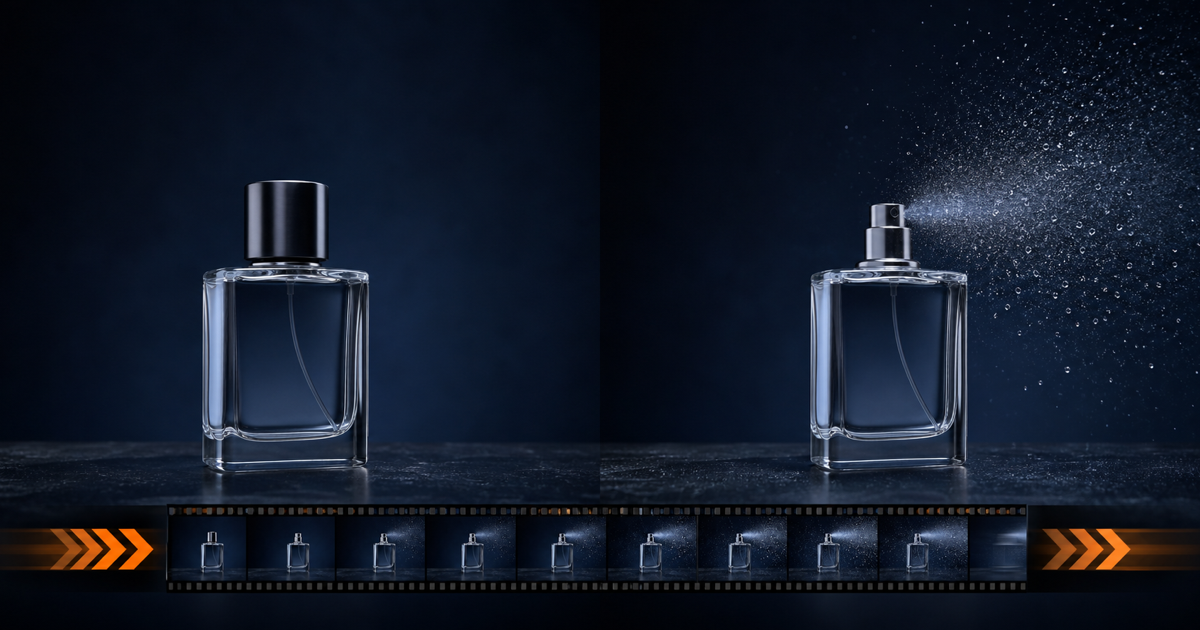
Slow 15-degree clockwise rotation of the bottle, camera locked at eye level, soft key light from camera-left, faint steam rising from the cap, shallow depth of field, cinematic product photography.
Rotate works for anything cylindrical. Keep the angle under 20 degrees. Larger rotations reveal the back of the product, which the model has to invent.
Pattern 2: Dolly Push-In (Electronics, Boxes, Devices)
Smooth 10-percent dolly push-in toward the device front edge, screen glow pulses gently, ambient reflection slides across the bezel, neutral studio backdrop, 50mm equivalent, photoreal.
Push-in adds perceived depth without rotating the product. Good for flat-front devices, phones, controllers, and packaging.
Pattern 3: Detail Pull-Focus (Apparel, Textiles, Texture)
Rack-focus from the fabric weave in foreground to the garment silhouette in background, soft window light, faint fabric sway, color-graded for editorial fashion, 35mm equivalent.
Pull-focus shows material quality. Use for apparel, leather goods, textured surfaces where the value is in the detail.
Citation capsule: Wan 2.7 motion prompts follow a five-segment anatomy (subject, action, setting, camera, style) documented in the Wan image-to-video user guide. For product video, three motion patterns cover most SKUs: slow rotate for cylinders, dolly push-in for flat-front devices, and detail pull-focus for textiles.
Step 4: Test at 720P First
Render the prompt at 720P and 4 seconds before any 1080P run. Why? Because 1080P costs roughly twice the credits per second, and most failures are motion failures, not resolution failures. Iterate cheap, then scale.
What to check on the 720P test:
- Identity: does the label, logo, and silhouette stay consistent across frames?
- Motion amplitude: is the motion too aggressive, too subtle, or warped?
- Background stability: does the backdrop stay clean, or does it ripple?
- Aspect ratio: did the output match the input aspect?
If the test reveals warping on glass or metal, reduce motion amplitude in the prompt. Swap "slow 15-degree rotation" for "subtle 5-degree rotation." Re-render at 720P. Only when the motion feels right should you escalate to 1080P.
We burned through 40 percent of a test budget on one skincare shoot before adopting the 720P-first rule. After the rule, the same shoot used 12 percent of budget, with more usable takes.
Step 5: Render the 1080P Final
Once the 720P test passes, escalate to 1080P. Keep the same prompt, same duration, same aspect ratio. Only the resolution changes. Bumping multiple variables at once makes it impossible to debug if the 1080P render looks different.
For the final render, push duration to 5 or 6 seconds. Shorter than 4 seconds feels abrupt on a PDP page. Longer than 7 seconds tends to introduce drift on reflective surfaces. Five seconds is the sweet spot for autoplay-on-scroll product video.
Final checks before export:
- Sharpness on the product label: zoom to 200 percent on a still frame.
- No flicker on background: a steady background reads as professional.
- Motion matches brand tone: luxury wants slower, fitness wants punchier.
[UNIQUE INSIGHT] 1080P does not fix motion problems. It magnifies them. If your 720P test has artifacts, the 1080P version will have the same artifacts, just sharper.
Three Product Prompt Templates
Here are three ready-to-use prompts. Swap the bracketed text for your product specifics.
Skincare Bottle
A frosted glass skincare bottle with a matte black pump, centered on a polished concrete surface. Slow 10-degree clockwise rotation, soft key light from camera-left at 45 degrees, faint steam rising from the pump nozzle, neutral cool-gray studio backdrop, shallow depth of field, cinematic product photography, color-graded for editorial luxury.
Electronic Device
A matte black wireless earbuds case, lid closed, centered on a dark walnut surface. Smooth 8-percent dolly push-in, subtle LED pulse on the front edge, ambient reflection sliding across the lid, warm rim light from camera-right, dark studio backdrop, 50mm equivalent, photoreal product render.
Apparel
A folded charcoal merino wool sweater on a raw linen surface. Rack-focus from the collar ribbing in foreground to the full garment silhouette in background, soft north-window light, faint fabric sway from camera-right, color-graded for editorial fashion lookbook, 35mm equivalent, shallow depth of field.
For more prompt structures across product categories, the PixMind product marketing cluster has expanded templates.
FAQ
Can I use any product photo with Wan 2.7 I2V?
Yes, as long as the photo is at least 1024x1024 and has a clear single subject. Cluttered backgrounds, hard shadows, and small subject-to-frame ratios produce artifacts. Prep the photo first. Source: PixMind product marketing cluster.
How long should a product video be?
Four to six seconds for social and PDP autoplay. Wan 2.7 supports up to 15 seconds per render, but artifact risk rises after 7 seconds on reflective products. Test at 5 seconds first.
Does Wan 2.7 work better than Sora 2 for product video?
For first-frame-locked product video, Wan 2.7 has the stronger documented I2V API. Sora 2 has limited first-frame control. See our head-to-head in the Wan 2.7 versus Sora 2 prompt test.
Can I add a logo or text overlay in Wan 2.7?
Wan 2.7 does not render legible text reliably. Add logos, captions, and CTAs in post-production. Generate the clean product shot first, then composite text in your editor.
Is 1080P worth the extra credits?
Only after the 720P motion test passes. 1080P consumes roughly 2x the credits per second per the PixMind pricing page. If the motion is right, 1080P sharpens detail. If the motion is wrong, 1080P sharpens the wrong thing.
Watch It in Action
— 歸藏(guizang.ai) (@op7418) April 13, 2026